| Want this info 'offline' for your PC build? Get the book! |
Click Here!
|
|
|
Connecting the Sound Cable
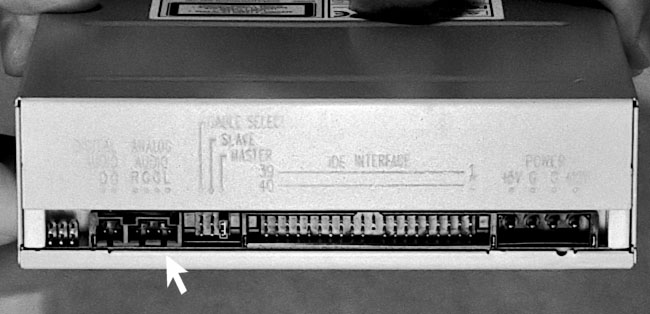
Examining the back of the CD-RW (Figure 88)
we also see there is a connector for a sound cable (Figure 89).
Figure 88: Back of the CD-RW drive The arrow shows a four-pin connector for a sound cable, which will connect to your sound card or mainboard. To the right of the sound connector are pins for jumper settings for master, slave, and cable select options. See the instructions that came with your drive for setting jumpers. Farther to the right are pins for the ribbon connector. At right is a 4-pin power connector.
|
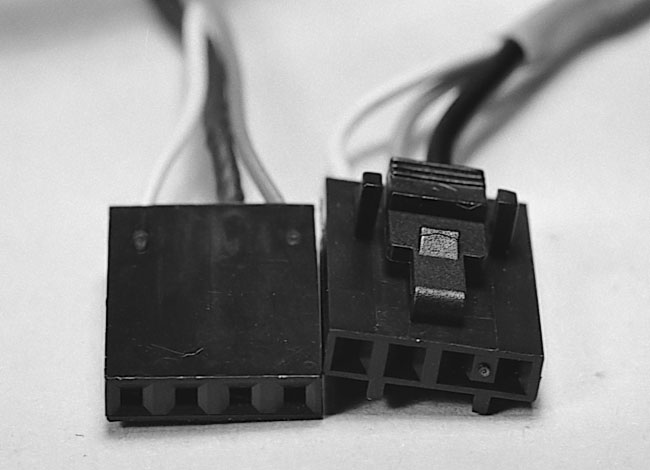
Figure 89: Sound cable The connectors on the sound cable will connect the CD-RW to either a sound card or to the mainboard (if the mainboard has built-in sound). The instructions say the cable can be plugged in only one way, such as the cable on the right. But, in reality, the cable in the box is the one on the left. They lied!
|
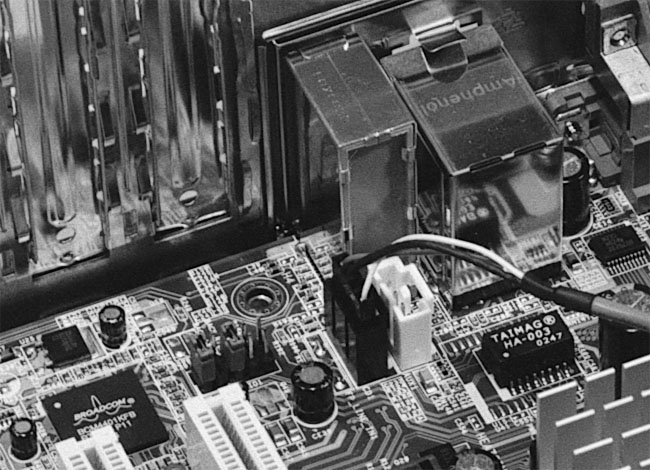
The other end of this cable
will connect to the mainboard if you have built-in sound (Figure 90)
or to a sound card.
Figure 90: Sound connected to mainboard After connecting all ribbon cables and power connectors, don’t forget to connect CD sound to your mainboard or to the sound card.
|
The instructions for the
CD-RW say that the cable can only be plugged in one way. And, a sound
cable is included. But, examining the cable, we see they lied (see Figure 89).
It can be plugged in two ways. Some sound cables can be plugged in only
one way, because they have notches in them which identify the top. Others
are just flat little suckers that will go in in either direction.
If your CD’s sound doesn’t
work, try reversing the cable, if you have a flat, notchless connector.
It should work in either orientation, however, because the four pins
are usually denoted RGGL, right speaker, ground, ground, and left speaker.
Right is often red in color. If a device doesn’t work, always check
to see that it’s properly connected.
Sometimes instructions for PC components,
such as CD-RWs, make little sense, because the instructions don’t
seem to match up with the actual device you’re holding. Sometimes
the instructions were written and a vendor was changed and the components
changed, but the instructions weren’t updated. This can happen
with software also.
| If you find The PC Guide useful, please consider making a small Paypal donation to help the site, using one of the buttons below. You can also donate a custom amount using the far right button (not less than $1 please, or PayPal gets most/all of your money!) In lieu of a larger donation, you may wish to consider buying the inexpensive print version of How to Build Your Own PC, direct from the author. Thanks for your support! |
|
|
Home -
Table Of Contents - Contact Us
How to Build Your Own PC (http://www.PCGuide.com/byop/) on PCGuide.com
Version 1.0 - Version Date: May 4, 2005
Adapted with permission from a work created by Charlie Palmer.
PCGuide.com Version © Copyright 2005 Charles M. Kozierok. All Rights Reserved.
Not responsible for any loss resulting from the use of this site.
|


